


- We assume that you already have deployment project in your solution.
- Generate Help 2 or CHM documentation with VSdocman.
- Add all necessary generated files in your deployment project.
For Help 2 it is content of whole FINAL_DOC folder.
For CHM:
- PROJECT_NAME.chm
- PROJECT_NAME_dyn_help.xml
- HelpRegCfg.xml
- register_PROJECT_NAME.bat
- unregister_PROJECT_NAME.bat
- HelixoftHelpReg.exe
- There are two versions of our registratin tool:
HelixoftHelpReg.exe....with console window and output messages
HelixoftHelpRegQ.exe...without console window, maybe more suitable for installation
If you don't want to use console window, just replace HelixoftHelpReg.exe in your deployment project with to use HelixoftHelpRegQ.exe from VSDOCMAN_PATH\Redist folder.
Now we add custom actions to our deployment project which call HelixoftHelpReg(Q).exe on install and uninstall. - In Solution Explorer, select a deployment project.
- On the View menu, point to Custom Actions
- Add Custom action in Install, browse to register_PROJECT_NAME.bat and select it. If you want to use HelixoftHelpRegQ.exe instead of HelixoftHelpReg.exe, just modify this BAT file. You don't need to call .BAT file. Instead, you can call HelixoftHelpReg(Q).exe directly. Just copy the arguments from .BAT file to Arguments field in Properties window. They should look like:
-r -f"HelpRegCfg.xml" -d"PROJECT_NAME_dyn_help.xml"
- Add Custom action in Uninstall, browse to unregister_PROJECT_NAME.bat and select it. If you want to use HelixoftHelpRegQ.exe instead of HelixoftHelpReg.exe, just modify this BAT file. You don't need to call .BAT file. Instead, you can call HelixoftHelpReg(Q).exe directly. Just copy the arguments from .BAT file to Arguments field in Properties window. They should look like:
-u -f"HelpRegCfg.xml" -d"PROJECT_NAME_dyn_help.xml"
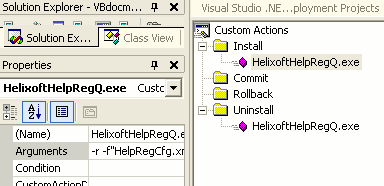
That's all. You can build your MSI file and try it (the best on other machine).
Note, you should use also -z parameter of HelixoftHelpReg(Q).exe utility. Otherwise your MSI installation fails if help registration fails. When this argument is used, the utility always returns 0 (OK) as exit code, even if there was an error during execution. This is useful if you don't want to cancel whole installation if there is some problem with help registration. MSI automatically fails if custom action returns non-zero value.