


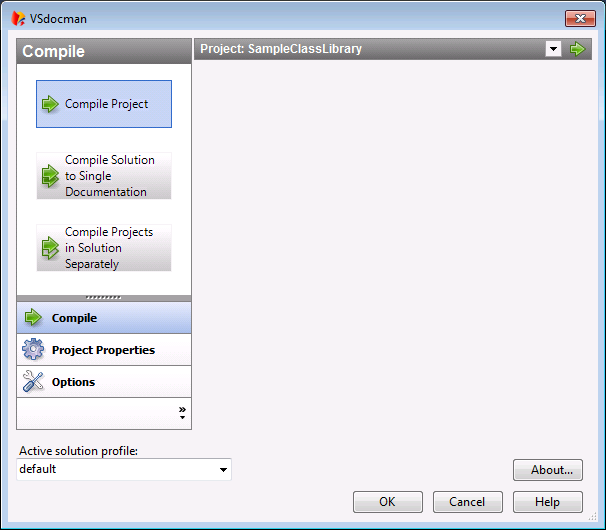
The main VSdocman dialog consists of three parts: compile buttons, project properties and program options.
 Selecting a Project
When you open the window, the active project is the one that was selected in the Solution Explorer or whose code file (document) is open and active in the IDE. You can override this behavior and always activate Solution-wide properties in the options. You can see the name of the project in the title of Compile and Project Properties pane. When you compile, this project will be compiled. Any changes to project properties are made for this project. If the solution contains more than one project, you don't need to close the VSdocman window, select another project and reopen the VSdocman window to manipulate the other project. There's a little drop-down arrow icon next to the project name in VSdocman window. Clicking it will allow you to directly select a new active project for editing and compilation.
Alternatively, you can select the solution-wide properties there too. The changes made to the previous project will not be lost. All changes in all projects will be automatically applied during compilation and they will be saved when closing this window. |

Compile
The Compile pane contains three buttons that allow you compiling documentation. Compile ProjectStarts to compile documentation for the active project. Compile Solution to Single DocumentationStarts to compile single documentation for current solution. That means, all VB .NET, C# and ASP .NET projects in the current solution are compiled into a single documentation with common settings taken from the solution-wide properties. Compile Projects in Solution SeparatelyStarts to compile documentation for the current solution. That means, each VB .NET, C# and ASP .NET project in current solution is compiled into separate documentation with its own settings. |
Project Properties
Project properties let you fully customize what and how should be documented.
Each properties page is described in detail in VSdocman help. Just press F1 when you are on particular page or look at See Also section at the bottom of this page. Project profileThis selector is common to all properties pages. Here you can select for which project profile you want to edit the settings. See Profiles for more details. |

Options
Options pane contains global program options (preferences). You can define your commenting styles and some environment settings there. |
There are also fields and buttons that are always visible.
Active solution profile
You can select active solution profile or manage profiles here. See Profiles for more details.
OK
Saves all settings for the current project and closes the dialog.
Cancel
Closes the dialog without saving any changes in settings. If there are any changes made in the settings, the user will be asked whether to save them.
Help
Shows help for VSdocman.
About
Shows the information about current version of VSdocman.
