The VSdocman output is fully controlled by the output templates. You can modify or create your own templates to customize the output. However, this has one drawback - if a newer version of VSdocman is installed, your changes in the built-in templates may be overwritten and lost.
Therefore, if you only need to change the look of your documentation, there's another and more flexible way. The following applies only to HTML-based output formats, i.e. HTML, CHM, and MS Help Viewer.
You can create a special stylesheet file named vsdocman_overrides.css and insert your own styles or override the existing ones in it. Then you place this file in the External Files Folder which you must specify, if you haven't done it yet. That's all. VSdocman will search for vsdocman_overrides.css file in the external files folder. If it's present, it will be copied to the output folder, otherwise, an empty CSS file will be created instead.
CSS Custom Properties
In addition to the CSS rules, you can set also some predefined CSS custom properties (variables) in this file. The javascript in the html_msdn2019 output will read them and change the behavior of the documentation, such as full-text search options, some links, etc. Currently, there are the following CSS Custom Properties:
Property |
Meaning |
--searchAlwaysWholeWord |
Search option. When set to 'true', the full text search will always work in the "only whole words" mode, even when the search phrase is not inside quotes. |
--headerLogoLink |
The URL to which the logo in the top header part will point. The top header part is not visible by default, it must be enabled in CSS by setting 'display:block' for #header-top-parent-container1. To set the logo picture, set the CSS properties of the #headerLogo. |
--headerTopCustomLineHtml |
The HTML of the contents (custom text, links, ...) in the top header part. The top header part is not visible by default, it must be enabled in CSS by setting 'display:block' for #header-top-parent-container1. |
By default, these properties are undefined. See the examples below.
Note, the CHM viewer uses IE 11 for rendering the pages. Since IE is old and no longer updated, it doesn't support many new HTML and CSS features, including CSS custom properties. To pass these variables to CHM output (starting with chm_msdn2019), you can use a special CSS selector named as the variable, with :after, where the value is stored in the content property. See the examples below.
 Examples
Borderless tablesBy default, tables created with the <list> comment tag are displayed with borders and shaded header. The following example illustrates, how you can easily modify it to hide the borders and the background. Create a new vsdocman_overrides.css file in your external files folder and copy the following content in it.
Additional header line with a logo and custom linksThe standard html_msdn2019 header looks as follows:
It's possible to display additional area above this header. The area contains clickable logo and custom text or links. It may look as follows.
This top header part is not visible by default, it must be enabled and customized in CSS. Use the following CSS. And put vsdocman_logo.png in your external files folder. You can change the name of the logo file as you like.
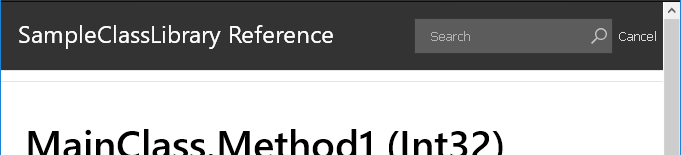
Dark headerThe standard html_msdn2019 header looks as follows:
You can make it dark:
Use the following CSS.
Customized footerThe standard html_msdn2019 footer looks as follows:
You can make it, for example, white and centered:
Use the following CSS.
Additional text and graphicsYou can use CSS even for injecting some additional text and graphics anywhere. This can be done with ::before and ::after CSS selectors. For example, you want to add a line of a text in the default topic header and add a logo as well (without showing additional top header area as described in the example above). The standard html_msdn2019 header looks as follows:
To make it look like this:
Use the following CSS. And put vsdocman_logo.png in your external files folder. You can change the name of the logo file as you like.
Force "whole words" mode in html_msdn2019 full-text searchBy default, the search in the html_msdn2019 output format returns also partial searches. For example, if a user enters: text as a search phrase (without quotes), then all words containing the "text" will be returned, such as Text, TextChanged, etc. To search for a whole words only, the user needs to enter the search words inside quotes: "text" which doesn't return TextChanged. If you want to enable "whole words" mode by default, so that users don't need to enter the search words inside quotes, you can do that easily directly from CSS, e.g. in the vsdocman_overrides.css file. Just set the searchAlwaysWholeWord CSS Custom Property to true:
Show favicon in a browserNormally, the favicon is displayed only for online content and it depends on the browser. A documentation in the html_msdn2019 output format can instruct the browser to always display the favicon, even for local documentation that is not online. Just put your favicon.ico file in your external files folder.
|