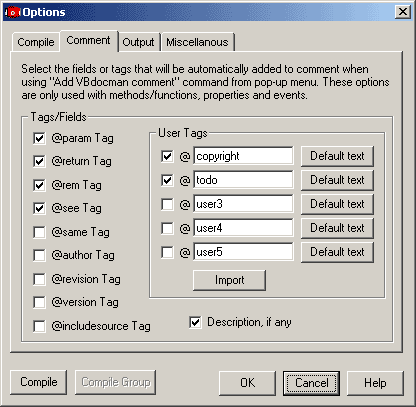
When the user clicks right mouse button on the code window, the pop-up menu appears. Menu contains Add VBdocman Comment item which automatically adds the comment to selected object. If that object is a method, function, property or event, user can preset which tags are added automatically.
Open Dialog
To do so go to Add-Ins -> VBdocman menu or press VBdocman button on standard toolbar. Options dialog appears. Set Comment tab.
Predefined Tags
There is a list of available tags on the left. Check those which you want to be added.
Description
If you check Description field on the bottom, the object's description attribute is automatically extracted. It is useful if you used this description in your projects from Tools->Procedure Attributes... menu. Then your old comment is used and there is no need to write any line of comment.
User Tags
You can define up to 5 own tags. Check those which you want to be added automatically. In the text box after "@" character specify a name of your tag. If you don't change it, default value is used. Optionally, default text can be specified by Default text button. This text appears automatically after the tag itself. It is useful when some phrase is repeatedly used within this tag.
For example:
If default text for @copyright tag is "Peter Macej 2001", then added comment looks as follows:
'@copyright Peter Macej 2001
Import button is used for importing user-defined tags from other VBdocman
projects. It would be annoying to define the same tags in every project. Therefore,
you can import them from your previous project by specifying its VBdocman project
file (*.vbdoc). Only settings related to user-defined tags are imported, all
other settings remain unchanged.